How to access the Beta versions of Arkio
The Arkio Beta is available on Windows, Quest, iOS and Mac
Latest build 2.0.0b7 - 11 April 2025
Learn about the new features on our release notes page
Sign up for our beta
Sign up here to receive further instructions and updates when new beta updates are available
Windows: download links available on the next Beta
Quest: Sign up on this release channel to switch between the beta and release channel on Quest
iOS and Mac: Sign up on this Testflight link to switch to the latest beta on iOS and Mac
Windows
For Windows, you can download and unzip the latest Windows builds to your device, then run the InstallArkioBeta.bat and plugin.bat scripts to install the latest Beta client and plugins in the correct directories. Any PowerShell windows can be closed after installation, and the latest build and plugin should now be available and point to the Arkio Beta on your PC.
(You can transfer imports/scenes and switch between the 1.9 Arkio release, following the instructions at the bottom of this page)


Quest
On Quest, you first sign up for the Beta release channel using the above link. After joining the beta, you can switch between the current release version of Arkio and the beta by going to your app system Settings (clicking and holding the trigger on an app), selecting a different release channel from the top. You can also switch between release channels from the Arkio store page or on your Meta Horizon phone app by clicking on the version number

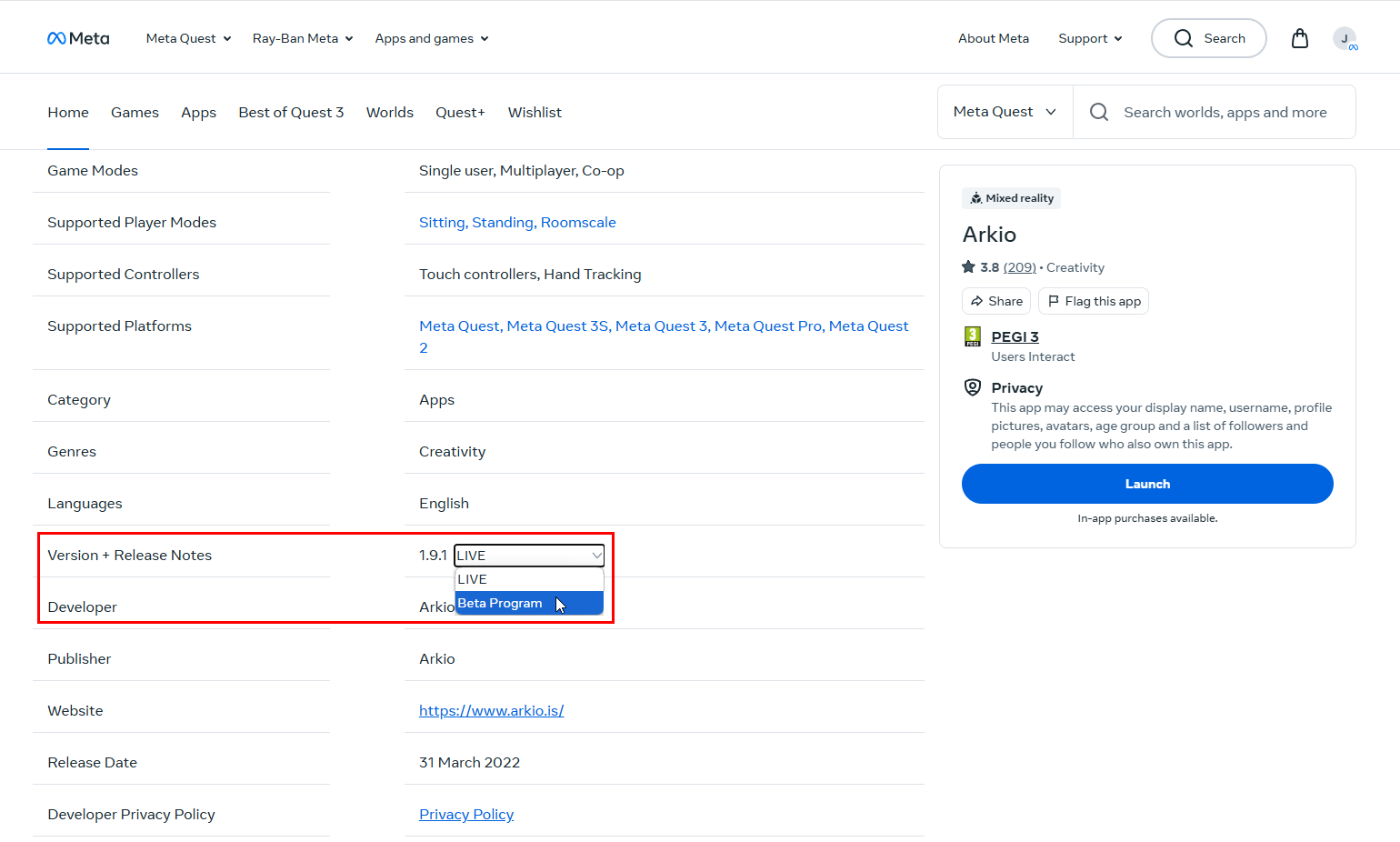
After switching versions, the Arkio app will be automatically updated the next time you start it. You can also force an update/downgrade by visiting the Arkio store page, clicking “see details” and “install”
iOS & Mac
On iOS and Mac, you can download the latest beta release of Arkio using the TestFlight app after signing up using the above link. This will replace your existing Arkio iOS/Mac application with the beta version that will no longer be compatible with the 1.9 Arkio release in meetings.
Switch back to the main Arkio release
The Beta version of Arkio is not compatible with the 1.9 release of Arkio, so your scenes, meetings, and imported files will not be shared between these versions. You can best use the Beta for internal testing and use the live 1.9 release for project work or live collaborations.
Your saved scene and imported files are in a different path for the beta and live release. To avoid losing work, don’t uninstall Arkio on Quest and iOS; instead, switch between release channels and install the store or beta version.
To switch back to the live release on Quest, you can go to your library app settings on Quest (or visit the store on your phone) and switch back to the “Live” version. You might have to visit the Arkio store page on Quest to trigger the upgrade or downgrade.
On iOS and Mac, you can switch back to the 1.9 release of Arkio and your old scenes and settings by downloading the app from the official iOS store or official Mac store.
For the PC release, you can start the previous release of Arkio, which should still be installed at C:\Program Files (x86)\Arkio, instead of running the Beta build from the default installation path at C:\Program Files (x86)\ArkioBeta. You can run both the 1.9 release build and the 2.0 Beta build simultaneously on Windows if you need to troubleshoot.

You can share scenes that you have made in the main release of Arkio 1.9.1 with the Beta release or imports made from the new plugins to the main release by copying user files between the following two paths. Arkio 2.0 scenes cannot be loaded in Arkio 1.9, but older scenes can be opened in the latest version.
%userprofile%\Documents\Arkio\Import
%userprofile%\Documents\ArkioBeta\Import
%userprofile%\Documents\Arkio\UserModels
%userprofile%\Documents\ArkioBeta\UserModels

